Search
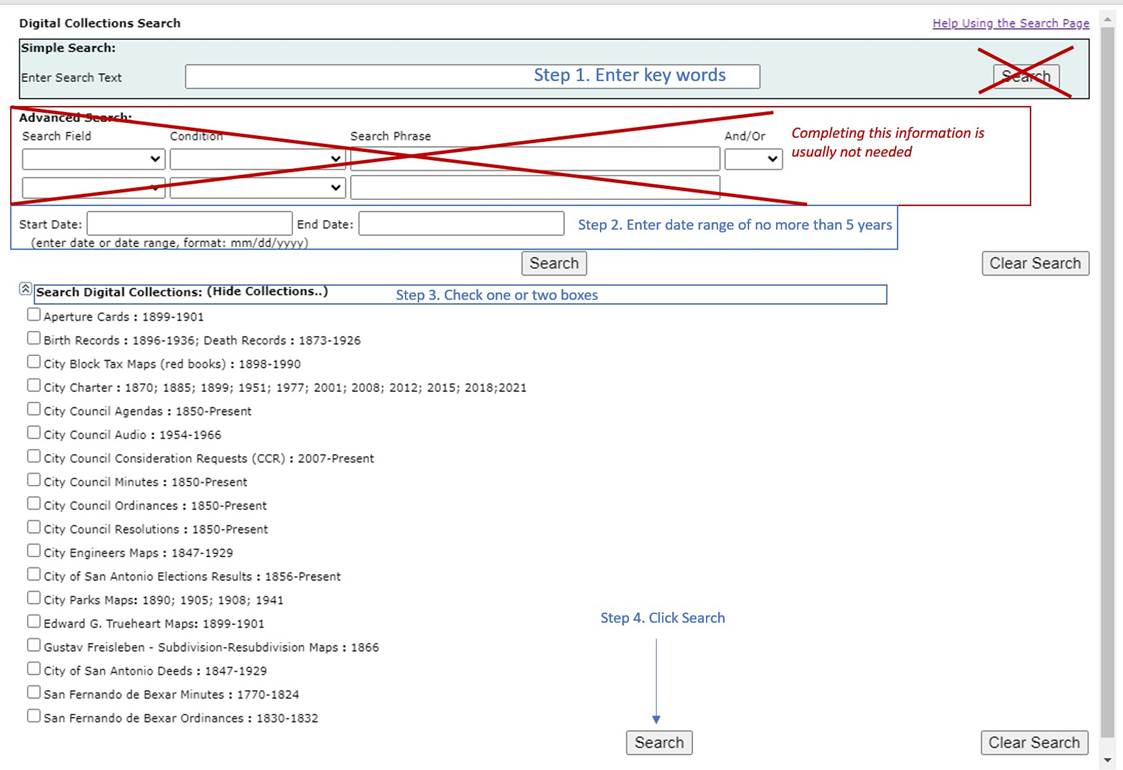
Because of the large volume in our collection, the Simple Search used alone will usually
not return results unless you
know the exact ordinance number or your keyword is
very unusual.
ü Narrow down the Simple
Search by including a Start Date and
End Date.
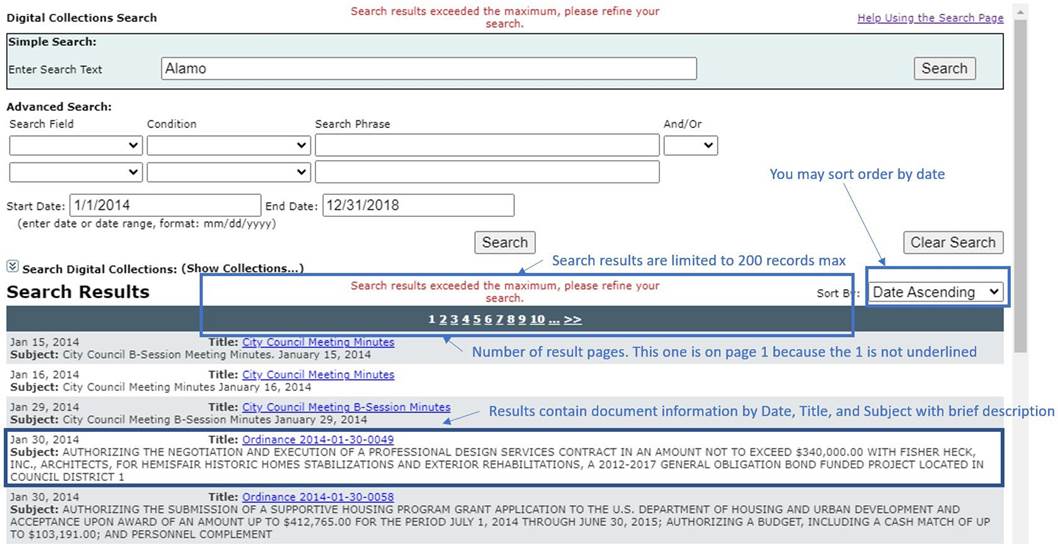
If you get an error stating
Search results exceeded
the maximum, please refine your search. then you will need to check the box for the type of record under Search Digital Collections.
If you do not know what type of document you are looking
for, try eliminating the types that you are sure they are NOT and check several
boxes.
Think
of the search engine as a computer program. It doesn't think like a person.
Instead, it tries to find content that has the words you type. So, use words you think will be in that content. Keep it short and use as few words as possible.
Using too many words might limit your results, and using too few might give you
too much information.
Tips for a better
search:
· When you're searching for a name or word,
keep it simple.
Just type in the name or as much of it as you remember.
· Every word matters in your search, so every word you type will be used.
·
The search doesn't
care about capital
letters. For example,
[alamo] is the same as [Alamo].
· To find a specific
phrase or word, use double
quotes. For instance, [“Alamo Contract”] tells the
search to look for those exact words in that exact order.
· Use "and" between
search words to find documents where both words are included. For example, [Alamo
and Contract] will find documents
with both words,
though not necessarily together.
· If you put double quotes around
your search terms like ["Alamo" or "Contract"], you'll
get results where either word or both may be
present in a document.
·
Overview of the Search
Results page:
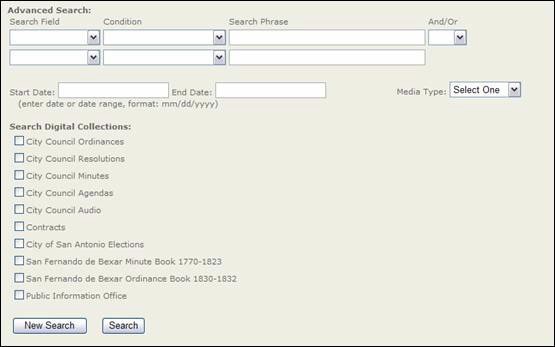
Advanced Search
An Advanced
Search allows you to select and filter
your search criteria.
The Advanced
Search allows you to select:
·
Search Field
·
Condition
·
Search Phrase
·
Search operator And/Or (Boolean
Search)
Boolean Search
Using certain logical operations to combine search
terms can either
broaden and/or narrow
your search.
·
AND narrows a search by combining terms. Your search will retrieve
documents that use both
the search terms that you specified. For example, [Alamo and Riverwalk].
·
OR broadens your search to include results
that contain either
of the words that you enter and is
especially useful when there are several common spellings or synonyms of a
word.
Get Help
If you need help email us at cityclerkarchives@sanantonio.gov
OR submit a Public Information Request through the Open Government Portal